
Why think-cell doesn't work in Google Slides
6 min read
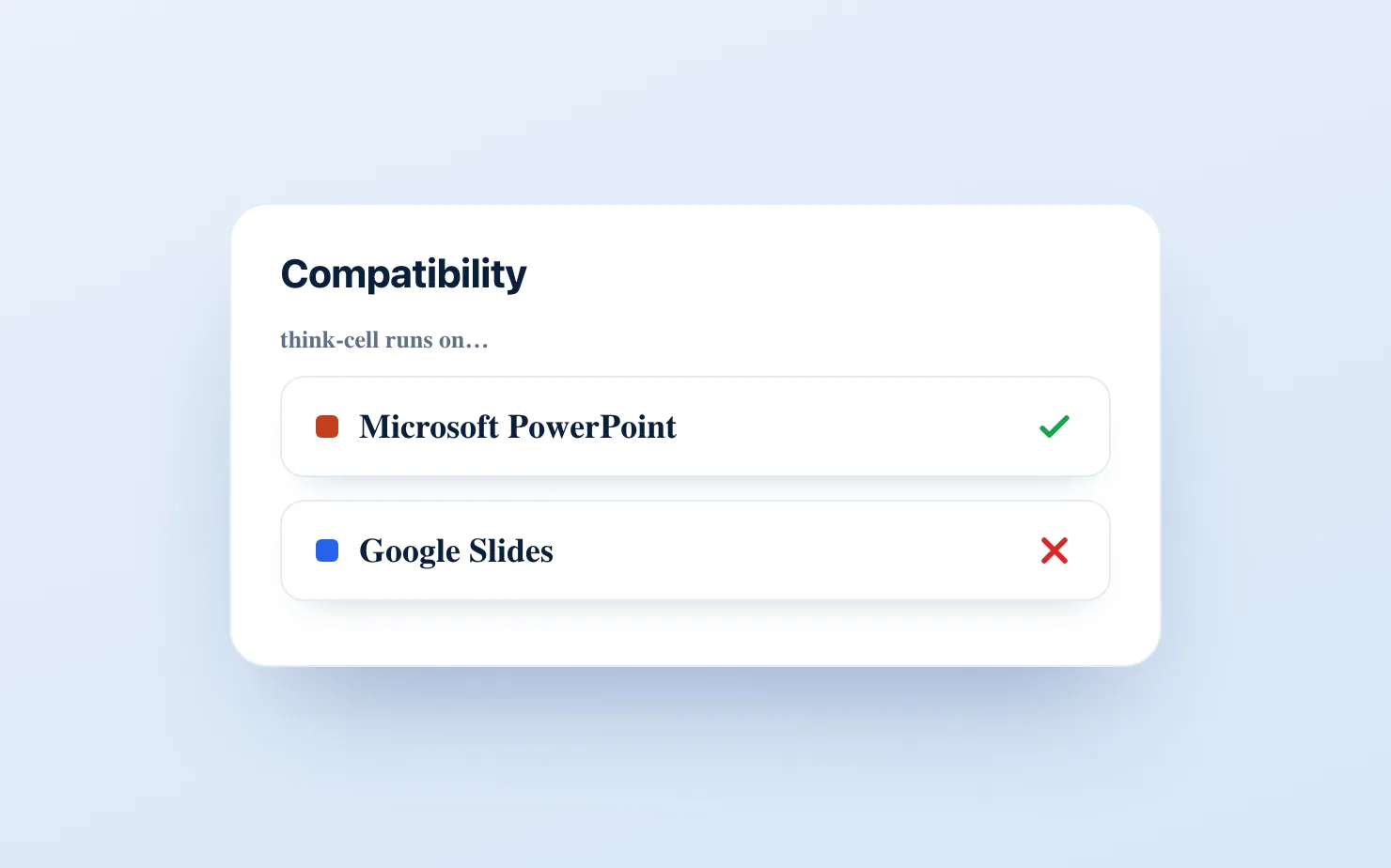
If you've ever tried to use think-cell in Google Slides, you already know the answer is "you can't" — and you probably found that out the hard way, halfway through a board deck, looking for a menu that isn't there.
You're not missing a setting. think-cell genuinely does not run inside Google Slides, and it never has. What's more telling is what think-cell tells you to do about it. Its own support documentation instructs paying users to convert their charts to images before moving a deck to Google: change the charts to images
before uploading. That's the official workaround from the category leader. Screenshot your work and paste it in.
This post explains why that's the case, why the workaround is as painful as it feels, and what the actual alternatives are if you live in Google Slides.
The short answer
think-cell is a Microsoft PowerPoint add-in. It's built specifically to extend PowerPoint and runs only inside it. Google Slides has no equivalent extension model that think-cell supports, so there is no version, plugin, or compatibility mode that brings it into Slides. The moment your team standardizes on Google Workspace, think-cell stops being an option — and you're left choosing between screenshotting from PowerPoint or rebuilding charts by hand in Slides.
Why think-cell is PowerPoint-only
think-cell was designed as a deep integration into the PowerPoint desktop application. It hooks directly into PowerPoint's chart and shape engine to do the things that make it valuable: automatic label placement, true waterfall and bridge charts, Mekko, connectors, and the speed that lets you build a clean chart in under two minutes.
That integration is also what locks it to PowerPoint. The tool depends on the desktop Office environment to function. Google Slides is web-based and uses a completely different add-on architecture, and think-cell has not built for it. So this isn't a temporary gap waiting on a feature update — it's a structural one. think-cell serves the PowerPoint world, and it has effectively ceded the Google Slides world entirely.
The official workaround: screenshot everything
Here's where it gets frustrating for anyone who does this work for a living. think-cell's recommended path for Google users is to build the chart in PowerPoint, turn it into a static image, and place that image into Slides.
For a deck you build once and never touch, that's merely annoying. For the decks most strategy, BizOps, and finance people actually own — board packs, QBRs, monthly investor updates, variance reviews — it's a recurring tax:
- The numbers change, so you reopen PowerPoint, edit the chart, re-export, and re-paste. Every cycle.
- The image doesn't match the rest of the deck's styling, so you spend time nudging it to fit.
- A colleague leaves a comment asking you to "just tweak the Q3 bar," and there's nothing to tweak — it's a picture.
- Your version of truth now lives in two files: the PowerPoint where the chart is real, and the Slides deck where it's a flattened image.
If you came from McKinsey, BCG, Bain, or a finance seat, this is the part that stings. You used to build a waterfall in 90 seconds and move on. Now you're running PowerPoint in a side window purely as a chart factory, exporting pictures into the deck you actually present from.
The other option: native Google Slides charts
The alternative to screenshotting is to use what Google Slides gives you natively. For management-style charts, that falls short fast:
- There's no real waterfall or bridge with proper subtotals, totals, and connectors.
- There's no Mekko or Marimekko anywhere in Google Workspace.
- Storytelling controls that think-cell users take for granted — deltas, CAGR markers, clean total labels, dashed "potential" segments — simply aren't there.
- A linked Sheets chart loses your styling the moment the data updates.
The result is charts that work for a quick internal doc but look out of place in front of a CFO or a board — which is exactly the audience these decks are for.
What you actually want
Strip away the brand names and the requirement is simple. You want consultant-grade charts — waterfall, stacked bar, 100% bar, line — built inside Google Slides, that stay editable as the data changes, without a PowerPoint detour and without screenshots. You want the speed and precision think-cell trained into you, in the workflow your company has already chosen.
That's a different product category than "think-cell, but somehow in Slides." It's a charting tool that lives inside Google Slides, built for the chart types management decks actually use every week.
The native fix: ChartKit
ChartKit is a Chrome extension that builds those charts directly inside Google Slides. No PowerPoint, no export loop, no screenshots.
- Native to Slides. The charts live in your deck as editable ChartKit charts, not flattened images.
- The charts decks rely on. Waterfall, stacked bar, 100% bar, and line — with totals, deltas, labels, and annotations.
- Editable on every data change. Update the numbers and the chart updates, styling intact, without a rebuild.
- Free to start, priced for one person. The Free plan covers 10 charts a month with no card; unlimited is €10/month — no five-seat minimum bundle to negotiate with procurement.
If you want the full side-by-side, see our think-cell alternative for Google Slides breakdown.
FAQ
Can I install think-cell in Google Slides? No. think-cell is a PowerPoint add-in and does not run in Google Slides. There's no plugin, web version, or compatibility mode that brings it into Slides.
Does think-cell have a Google Slides version coming? There's no native Google Slides version. think-cell's own guidance is to convert charts to images before uploading a deck to Google, which signals the workaround — screenshots — rather than native support.
How do people use think-cell charts in Google Slides today? The common path is to build the chart in PowerPoint, export it as an image, and paste it into Slides — then repeat the whole loop whenever the data changes. A native add-on like ChartKit avoids that by building editable charts inside Slides directly.
What's the best think-cell alternative for Google Slides? For consultant-grade charts built natively in Slides, ChartKit covers waterfall, stacked bar, 100% bar, and line charts, stays editable on data changes, and is free for the first 10 charts a month with unlimited at €10/month. Chartbuddy and Charta are other native options worth comparing — see our honest think-cell alternative comparison.
Bottom line
think-cell doesn't work in Google Slides because it was never built to — it's a PowerPoint tool, and its own documentation points Google users toward screenshots. If your company runs on Google Workspace, you don't have to choose between maintaining a parallel PowerPoint file and shipping charts that look like the native Slides defaults.