
The 4 real think-cell alternatives for Google Slides
6 min read
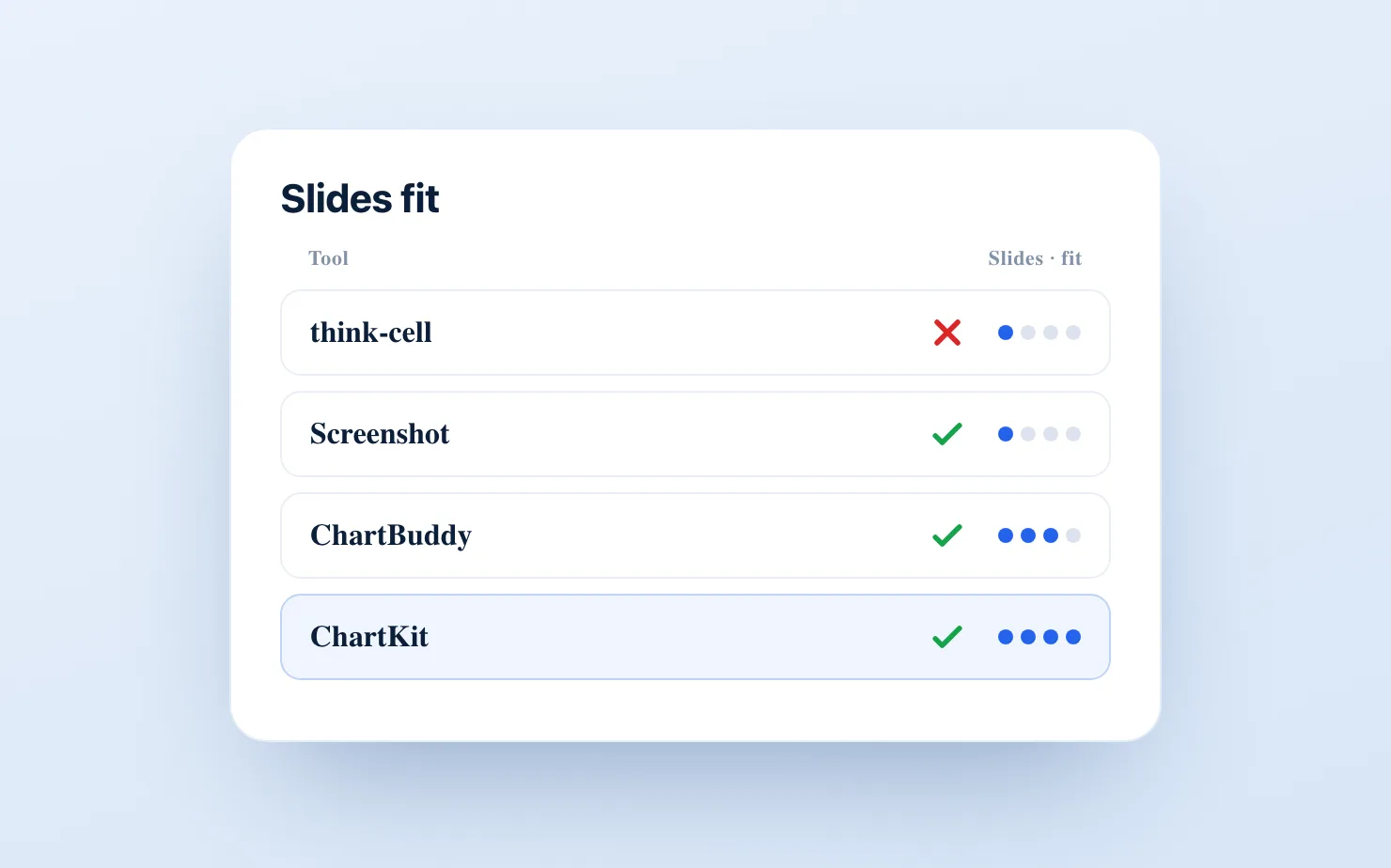
If you use Google Slides for business presentations and you've heard about think-cell, you've probably run into the same wall: think-cell only works in PowerPoint. There's no official Google Slides version. So anyone on Google Workspace who wants consultant-grade charts has to find a different approach. We dug into exactly why the PowerPoint-only limit exists, and what breaks when you try to work around it, in why think-cell doesn't work in Google Slides.
In this post we'll compare the four real options. We built ChartKit, so we have a dog in this fight. We'll be upfront about what that means for the comparison.
The four think-cell alternatives
1. Native Google Slides charts
Google Slides has a built-in chart tool that pulls data from Google Sheets. It's free, requires no installation, and works for basic column, bar, line, and pie charts.
Strengths: No cost, no extensions, collaborative editing, live data links from Sheets.
Limitations: Limited chart types (e.g., no mekko charts and no proper waterfall charts), minimal controls (no deltas, no annotations, no CAGR lines), charts can only be edited inside Google Sheets.
Best for: Teams that need occasional simple charts and don't have recurring reporting demands.
2. Think-cell (PowerPoint only)
Think-cell is the industry standard for creating charts in business presentations. Consultants, investment bankers, and corporate strategy teams use it because it's fast, the output is polished, and it handles complex chart types (Mekko charts, CAGR labels, difference arrows) that no other tool matches.
Strengths: Unmatched chart coverage, deep PowerPoint integration, battle-tested in professional services, excellent controls.
Limitations: PowerPoint only - there is no Google Slides support. Pricing is roughly €600/year per user. Requires Windows or Mac with PowerPoint installed. If your team works in Google Slides, think-cell isn't an option without simply pasting as images from PowerPoint.
Best for: Firms already committed to PowerPoint workflows (most large consulting and banking teams).
3. ChartBuddy
ChartBuddy is a Google Slides add-on that covers a wide range of chart types and positions itself directly as a think-cell alternative for Google Workspace. It's been around longer than ChartKit and has more chart types today.
Strengths: Broad chart type coverage (including Gantt, funnel, Mekko), Google Slides native, active development, solid reviews in the Workspace Marketplace.
Limitations: Slightly higher price than ChartKit, and charts look slightly different from think-cell. No axis breaks, and no live Google Sheets sync. Only works inside Google Slides.
Best for: Teams that need a wide variety of chart types, including Gantt and funnel charts, and are willing to accept a slight visual deviation from think-cell.
4. ChartKit
ChartKit is a Chrome extension that adds consultant-style chart creation directly inside Google Slides, Docs, and Sheets. We built it specifically for teams that do recurring business reporting - management reviews, board decks, operating reviews - in Google Workspace.
Strengths: Clean, fast interface for the chart types used most in management decks, strong storytelling controls (totals, deltas, segment labels, annotations), and axis breaks, plus mekko, pie, bubble, and scatter charts. Live Google Sheets sync keeps charts current when the underlying data changes. Works inside Google Docs, Google Slides and Google Sheets.
Limitations: The one real gap versus ChartBuddy is Gantt and funnel charts, which ChartKit doesn't offer today. If your decks depend on those, ChartBuddy is the better fit.
Best for: Consultants, finance teams, and operators who build recurring business charts in Google Slides and want a fast, clean workflow for charts.
Feature comparison
| Native Google Slides | Think-cell | ChartBuddy | ChartKit | |
|---|---|---|---|---|
| Platform | Google Slides | PowerPoint only | Google Slides | Google Slides |
| Chart type support | ❌ | ✅ Full | ✅ | ✅ |
| Google Sheets link | ✅ | N/A | ❌ | ✅ |
| Delta and annotation labels | ❌ | ✅ | ✅ | ✅ |
| Axis breaks | ❌ | ✅ | ❌ | ✅ |
| AI support | ❌ | ❌ | ❌ | ⏳ |
| Price | Free | ~€600/yr | ~€10/mo | Free, €10/mo Pro |
| Works without PowerPoint | ✅ | ❌ | ✅ | ✅ |
So, which one should you use?
Use native Google Slides if you need simple charts occasionally and don't want to install anything.
Use think-cell if your team is already in PowerPoint and needs the full feature set — Mekko charts, complex CAGR annotations, Gantt. Don't use it if you're on Google Slides.
Use ChartBuddy if you need a wide chart type library in Google Slides, including chart types beyond the standard management-deck toolkit. We go deeper on this one in our ChartKit vs ChartBuddy comparison.
Use ChartKit if you build recurring business charts in Google Slides and want the fastest, cleanest workflow for those specific types. We put ChartKit and think-cell side by side in a direct head-to-head comparison if you're weighing exactly those two.
Common questions
Is there a think-cell for Google Slides? There's no official think-cell Google Slides version. Think-cell has confirmed they don't plan to support Google Slides. ChartBuddy and ChartKit are the closest alternatives built natively for Google Slides.
Can you use think-cell in Google Workspace? Only if you export the Google Slides presentation to PowerPoint, use think-cell in PowerPoint, then re-import. This breaks collaboration and is painful for recurring updates. Most teams that try this workflow abandon it quickly.
What is the cheapest think-cell alternative for Google Slides? ChartKit has a free plan - 10 charts a month with every chart type - then €10/month for unlimited. ChartBuddy is in a similar price range with a trial. Native Google Slides is free but lacks the chart types and storytelling controls that make think-cell useful.
What's the closest thing to think-cell for Google Slides? For pure chart-type coverage, ChartBuddy is closer to think-cell's breadth. For the day-to-day workflow of building and updating management-deck charts (waterfalls, stacked bars, operating reviews), ChartKit is a more focused match.
Is ChartKit free? Yes. There is a free plan - 10 charts a month with every chart type and no credit card. Pro lifts the cap for €10/month, and a 14-day Pro trial is there if you want to test unlimited first.
Is there a think-cell equivalent for Google Slides? Not an official one - think-cell has no plans to build for Google Slides. The closest think-cell equivalent for Google Slides is a native add-on: ChartBuddy for the widest chart-type library, or ChartKit for management-deck charts (waterfall, stacked bar, mekko) with live Google Sheets sync and a real free plan.
If your team lives in Google Slides and you're building business charts on a recurring basis, either ChartBuddy or ChartKit is worth installing. ChartKit's free plan and ChartBuddy's trial both let you test against the chart types you actually build. If you want the workflow view rather than the tool comparison, we wrote an ex-consultant's guide to surviving Google Slides after think-cell and a playbook for building board-ready charts in Google Slides.
Download and try ChartKit for free — 10 charts a month on the Free plan, no card required.