
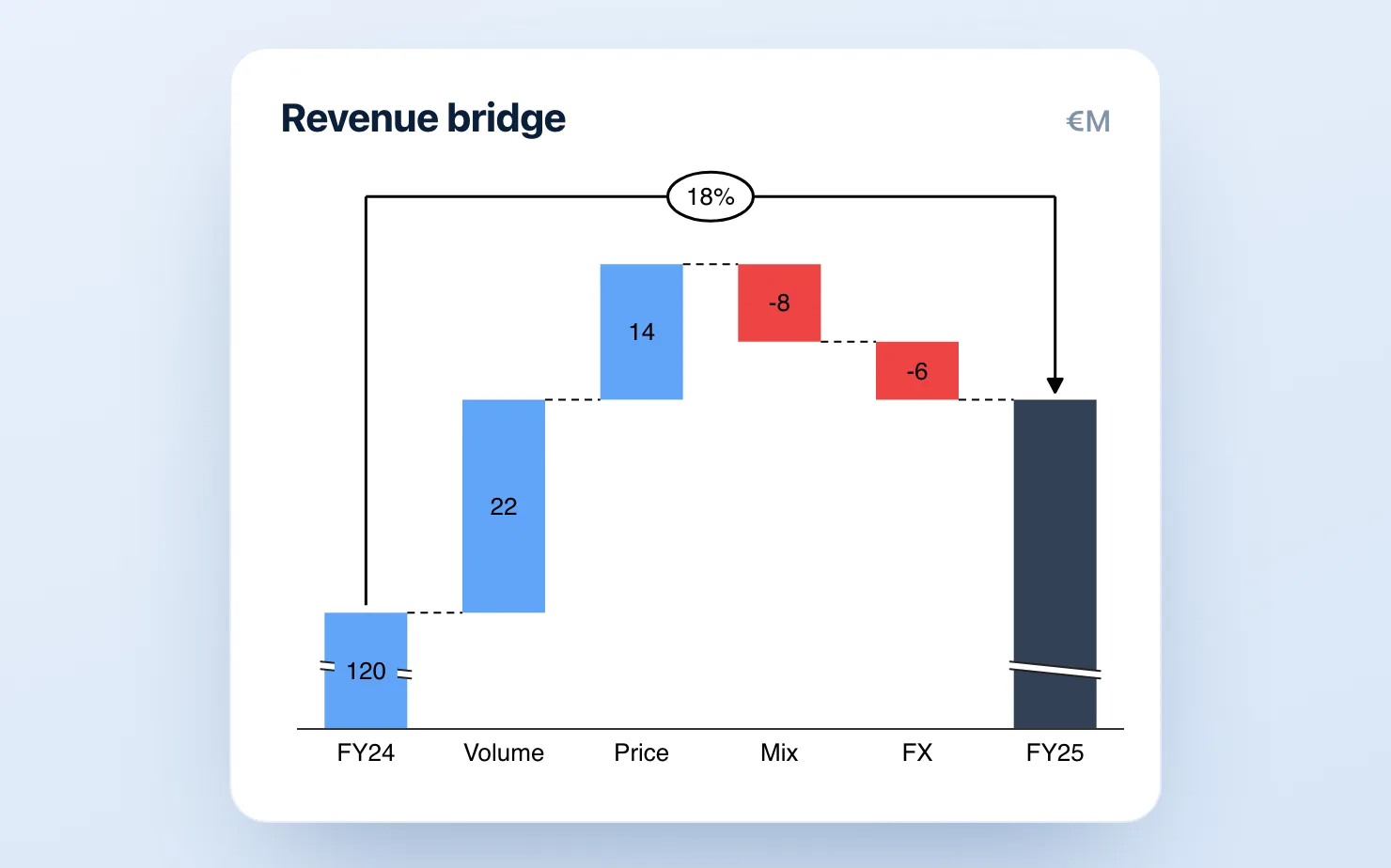
If you've ever owed a CFO or board a "walk from last quarter to this quarter," you know what a bridge chart is — and if you're doing it in Google Slides, you know the problem. Bridge charts (also called variance bridges, waterfall charts, or walks) are the workhorse of FP&A: they show how you got from one number to another, bar by bar, positive and negative, with a total at the end. They're also the one chart type that Google Slides, and Google Sheets, genuinely cannot build properly.
This guide covers what bridge charts are, where the native tools fall short, and the three real options for building one in Google Slides — honestly.
What a bridge chart is (and how it differs from a plain waterfall)
A bridge chart is a waterfall chart applied to variance or movement analysis. The terms are often used interchangeably, but in FP&A contexts, "bridge" usually implies a specific structure:
- A starting total (e.g., last quarter's ARR, last year's revenue)
- A series of positive and negative movements (new business, expansion, churn, FX impact, one-offs)
- An ending total (this quarter's ARR, this year's revenue)
The result is a chart that tells the story of how you got from A to B, in a format a CFO, board, or investor can read in under 10 seconds.
Common bridge chart types in FP&A and strategy decks:
- ARR bridge — new ARR, expansion, contraction, churn, ending ARR
- Revenue bridge — volume, price, mix, FX, total
- EBITDA bridge — revenue, COGS, opex line items, EBITDA
- Budget vs. actuals variance bridge — plan, individual variances, actual
- Headcount walk — starting HC, hires, attrition, ending HC
Why Google Slides can't build a proper bridge chart
A real bridge chart needs four things that the native Google Slides tools don't support:
- Floating bars — each bar starts where the previous one ended, not at the baseline
- Total and subtotal bars — drop-to-zero bars that summarise a group of movements
- Connector lines — the horizontal lines linking each bar to the next
- Color logic — increases in one color, decreases in another, totals in a neutral
Google Sheets does include a waterfall chart type. But it handles subtotals poorly, connector styling is minimal, and updating the data requires a round-trip back to Sheets that frequently breaks the chart's formatting in the slide. For a one-off internal snapshot, it's workable. For a monthly board pack where the numbers change two days before the meeting, it isn't.
The three real options
Option 1: The Google Sheets waterfall embed (free, limited)
- In Sheets, set up two columns: labels and values (use negative numbers for decreases).
- Insert a chart → select Waterfall from the chart type menu.
- In your Slides deck: Insert → Chart → From Sheets and link the chart.
What works: It's free and requires no add-on. For a simple 4–5 bar bridge with no subtotals, it's genuinely usable.
What breaks: Sheets' waterfall treats subtotals and totals differently from how management decks expect — you get one final total, but intermediate subtotals require awkward workarounds. Color customisation fights you. Label control is poor. And once the chart is linked into Slides, any data change means navigating back to Sheets, editing, and hoping the chart updates cleanly — which it doesn't always do. Plan for 15–20 minutes per chart on anything more complex than a 5-bar walk.
Option 2: The stacked-bar hack (free, painful)
The manual method that every ex-consultant has done at least once:
- For each bar, calculate a hidden "base" value equal to the running cumulative total before that movement.
- Build a stacked bar chart with two series: the invisible base (set to transparent fill) and the visible movement bar.
- Draw connector lines between bars manually with the line tool.
- Add every label as a separate text box.
- Repeat for subtotal and total bars, which need their own base calculations.
What works: Full control over appearance. No paid tool required. If you're building this once for a one-time presentation, it's a legitimate choice.
What breaks: 20–40 minutes per chart. Every data update means recalculating the base values, redrawing bars, and re-aligning text boxes and connector lines. When the deck gets reviewed and the CFO asks to move churn above expansion, everything shifts. This method doesn't survive a real reporting cycle — it becomes the thing your team quietly dreads each month.
Option 3: A native add-on (fast, free to start)
Add-ons like ChartKit and ChartBuddy build real bridge charts directly inside Google Slides — floating bars, subtotals, totals, connectors, color logic — as native editable objects, not pasted images. Our think-cell alternative comparison covers which one fits your deck.
With ChartKit:
- Open the ChartKit panel inside Google Slides.
- Select Waterfall (bridge charts use the same chart type).
- Paste your values and mark which rows are subtotals or totals.
- Place the chart on the slide.
From data to chart: around 90 seconds. When numbers change, update the values in the panel — the chart rebuilds in place. Deltas, annotations, and axis breaks are built in. ChartKit is free to install — 10 charts a month on the Free plan — with unlimited at €10/month (or €80/year); ChartBuddy is around €10/month and also handles bridges well.
Which option fits your situation?
| Sheets embed | Stacked-bar hack | Add-on (ChartKit / ChartBuddy) | |
|---|---|---|---|
| Cost | Free | Free | Free plan, €10/mo unlimited |
| Time per chart | ~15 min | 20–40 min | ~2 min |
| Subtotals / totals | Limited | Manual | ✅ |
| Survives data updates | Partly | ❌ | ✅ |
| Connector lines | Basic | Manual | ✅ |
| Consulting-grade output | ❌ | With effort | ✅ |
Rule of thumb: if you build a bridge chart once a quarter or less, the Sheets method or the manual hack is defensible. If it's in a monthly board pack or investor update, the add-on pays for itself the first time the numbers change two hours before the meeting.
Common questions
Is a bridge chart the same as a waterfall chart? Effectively yes. "Bridge" is the term FP&A and consulting teams use when applying the waterfall format to variance or movement analysis. The underlying chart structure — floating bars, a starting total, movements, an ending total — is identical.
Can Google Sheets make a proper variance bridge? Not really. The Sheets waterfall type works for simple use cases but lacks proper intermediate subtotal support and fine-grained styling control. For a CFO-ready variance bridge, you need either the manual stacked-bar method or an add-on.
What's the difference between a waterfall and an ARR bridge? An ARR bridge is a specific type of waterfall applied to ARR movement: opening ARR → new business → expansion → contraction → churn → closing ARR. The chart structure is identical; the labels and business meaning differ.
How do I show positive and negative movements on the same bridge? In ChartKit, positive and negative bars are colored automatically based on whether the value is above or below zero. In the Sheets method, you control colors per series. In the manual stacked-bar approach, you set fill colors on each bar individually.
If bridge charts show up in every board pack or operating review, skip the workarounds and build the next variance walk in about 90 seconds, inside the deck.
Download and try ChartKit for free — 10 charts a month on the Free plan, no card required.