
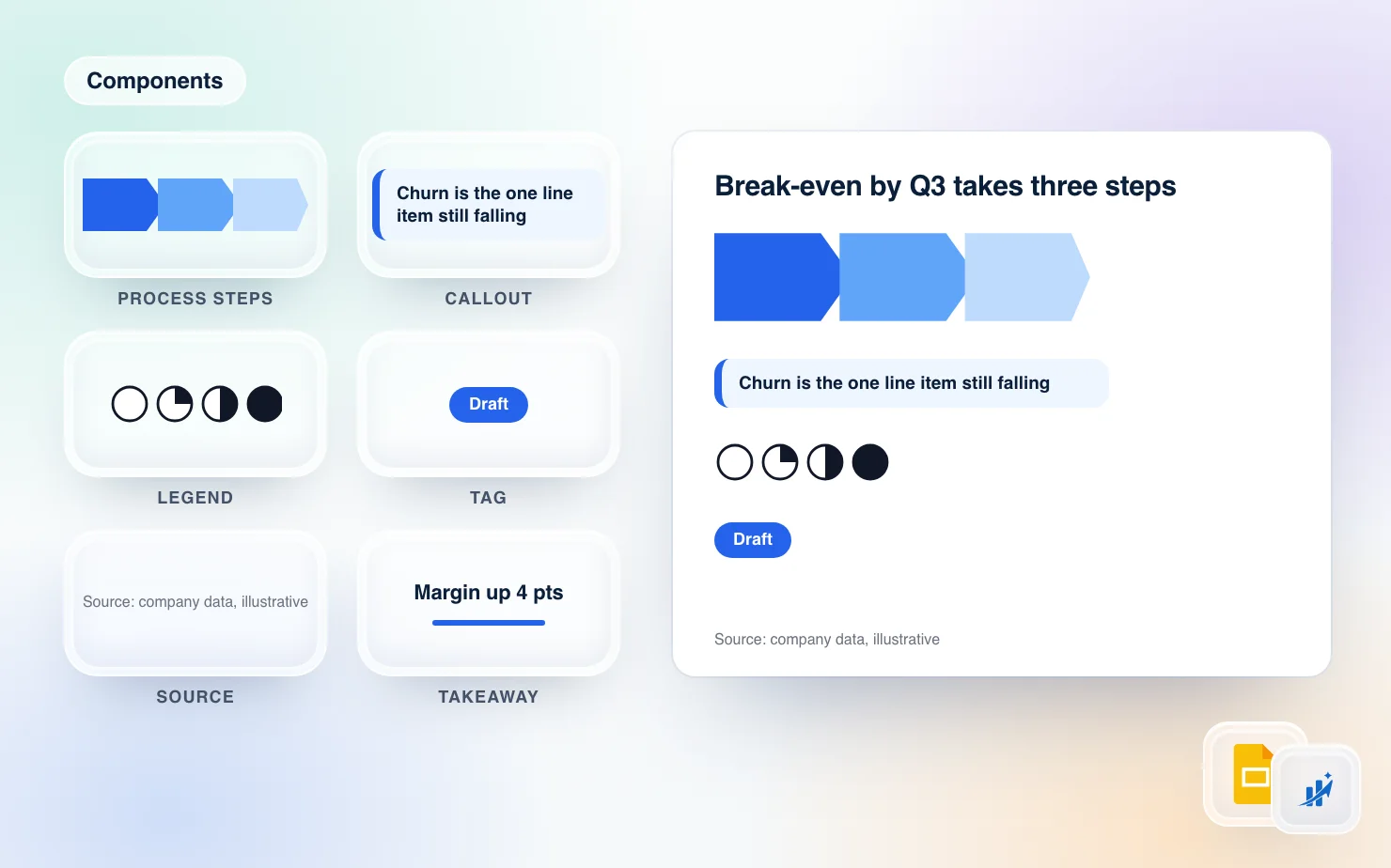
There is an incredible amount of time lost in recreating components from old decks in new decks. You know the callout box you want. It lives in a deck from March, or maybe April. You open three presentations, scroll three filmstrips, copy it, paste it into the new deck, and it lands at the wrong size in the wrong colors. So you fix it again.
Google Slides has no library for finished pieces. It has built-in shapes, and it has themes and layouts, but nowhere to keep "the three-step process strip we always use" and drop it where you need it. This guide covers what people do instead, where each workaround breaks, and a setup where you save a piece once and place it from a menu.
What native Google Slides gives you
Five habits cover almost everything people do today. Each one works, up to a point.
Copy and paste between decks. Select the shapes, copy, open the other deck, paste. It is the fastest route and the least reliable. A shape whose fill points at a theme color picks up the new deck's theme, so a blue that was "Accent 1" in one deck becomes whatever Accent 1 is in the other. Size and position can shift too. Pasting is fine for one plain rectangle and tiresome for anything with six parts.
Import slides. In the File menu, Import slides lets you pick slides from another presentation. Third-party walkthroughs such as How-To Geek's describe a "Keep original theme" checkbox. Checked, the imported slides bring their original theme. Unchecked, they take on the theme of the deck you are in. This is the right tool when you want a whole slide. It is the wrong one when you want a single callout from a slide that also holds a chart and four other things you now have to delete.
A master deck of pieces. Many teams keep one presentation as a scrapbook, with a slide per component. It is the closest thing to a library and it has the failure every scrapbook has. Somebody adds a near-duplicate, nobody prunes it, and in a year the deck is a hundred slides with names like "callout v3 final". Finding a piece means opening the deck and scrolling. Placing it is still a copy and paste across decks.
Themes and layouts. Google's own help describes a theme as a preset group of colors, fonts, background and layouts, and you can import a theme from another Google Slides or PowerPoint file. A shape added to a layout in the master view appears on every slide that uses the layout. That suits a logo or a footer. It does not suit a callout you want on slide 7 and nowhere else.
Paint Format. It copies the look of one element onto another. Useful for matching a fill and a font. It does not move shapes between decks.
The common thread is that Slides is built around whole slides and whole themes. A piece smaller than a slide and larger than one shape has no home.
Decide what is worth saving
Whatever tool you use, the question is which pieces earn a slot. A good test is whether you have built it at least three times from scratch. These are the usual winners.
- Callout boxes. A tinted panel with an accent edge and a line of text. Every deck has one.
- Process chevrons. Three or four arrows in a row with a label slot in each. Rebuilding the notch alignment is the part nobody enjoys.
- Harvey ball legends. A row of empty, quarter, half and full circles with a key. A legend you place beside a hand-built table is a natural component.
- Source and footnote blocks. One line of small grey text at a fixed position. If it lands at the same place on every page, the deck reads as one document.
- Sticker and tag shapes. "Draft", "Preliminary", "Confidential", "New".
- Title and takeaway blocks. The action title with its rule underneath, or a bold "so what" strip across the bottom.
- Section trackers. The small breadcrumb row that shows where you are in the storyline. The ex-consultant guide to Slides goes through the other conventions that make a deck look like a firm produced it.
Build each piece at the size you will use it. Give it real placeholder text, since the label you see in the library is the label you will find at 11pm. Group the parts so it moves as one object.
Keep a shared library tidy
A library fills up the same way a scrapbook deck does. A few rules keep it useful.
- Name by what it is, not who made it. "Callout, accent edge" beats "Anna's box". Add a number or a qualifier only when two pieces genuinely differ.
- One of each. If a second callout appears, decide whether it replaces the first. If it does, delete the old one.
- Save at final size and with final colors. The piece should need a label change and nothing else.
- Keep personal and team pieces apart. Experiments belong in your private set. Only things the team should reach for go in the shared set.
- Review it when the brand changes. A refreshed palette makes every old piece a small tax.
A library of twenty pieces people trust beats one of two hundred they have to read.
Saving shapes with ChartKit Components
ChartKit adds a Components library to Google Slides. You build a piece on a slide, select it, and save it. Then you place it from a menu on any slide in any deck.
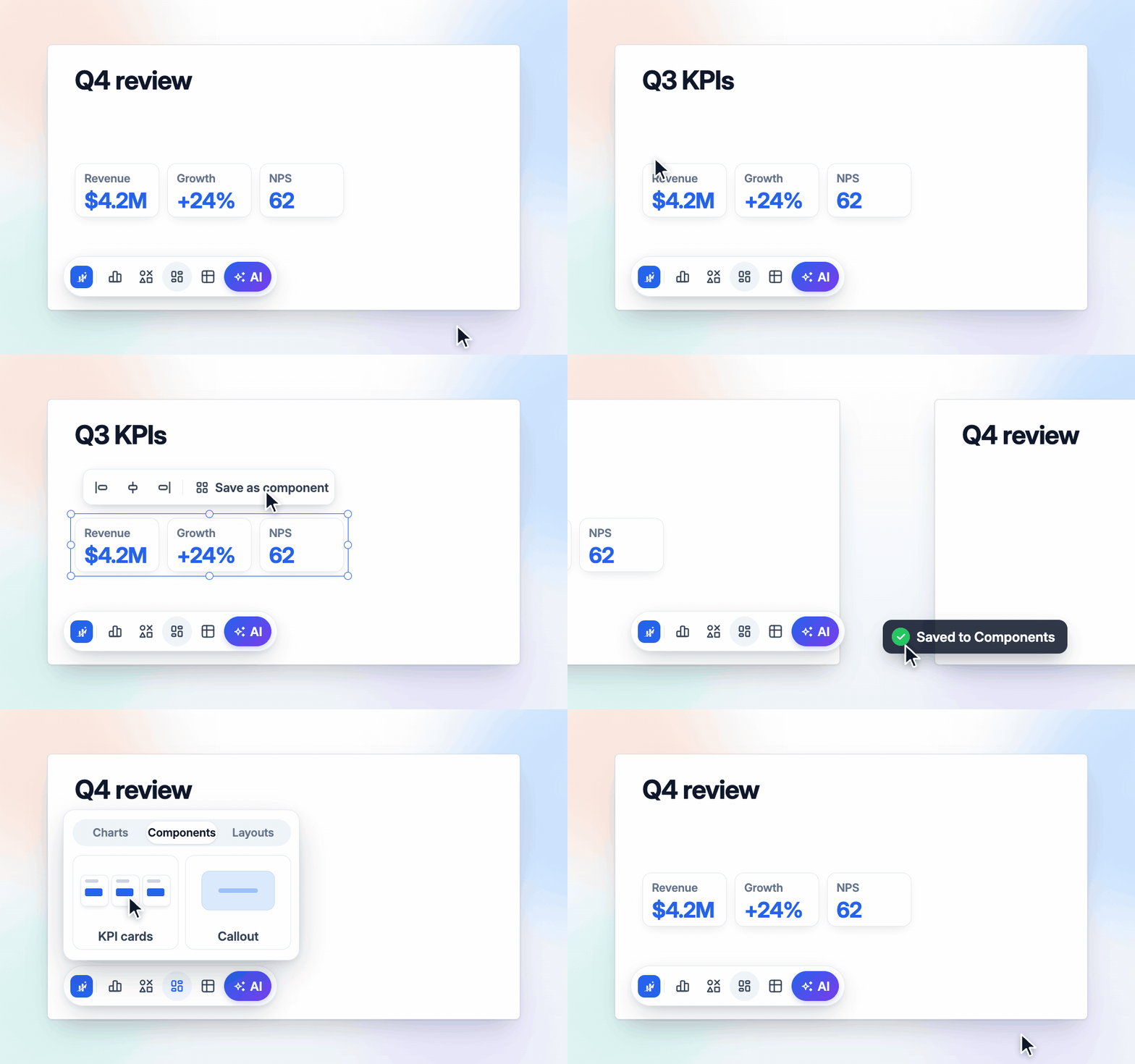
The flow, as it works in the product.
- Select the shapes. Click or marquee the elements on the slide. The Arrange toolbar appears.
- Choose Save as component. A dialog shows a preview, a name field and, if you are on a team, a choice between Only me and Team.
- Open the Templates menu and switch to Components. The menu has a Charts, Components and Layouts switch. The Components side has All, Mine, Team and Global tabs.
- Click a card. A ghost of the component follows the cursor. Click on the slide to place it.
Components come back as real Slides shapes, lines and text. They are not a picture. You can double-click a box and retype the label, or change a fill after placing it.
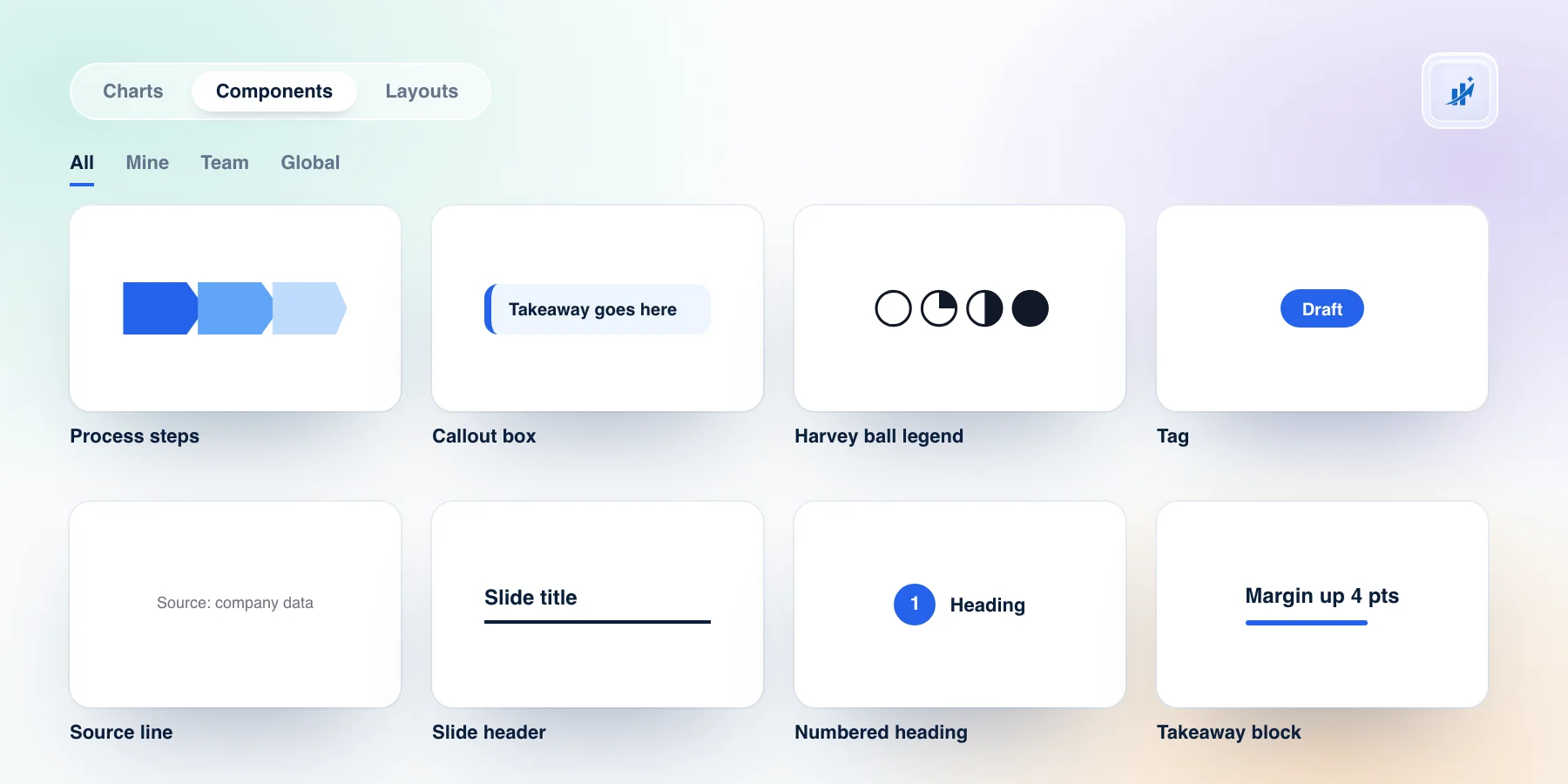
Illustrative. The cards show the kind of pieces worth saving, not a screenshot of a specific library.
What to expect from it
A few details matter before you rely on it.
- Placement is at the saved size. A component has one size, the size you saved it at. A press-and-drag places it and does not resize it. Resize it afterwards like any group.
- Theme colors follow the deck. Fills are written back the way Slides reported them when you saved. A fill that referenced the theme resolves against the theme of the deck you place into, and a hard-coded color stays as it was. The library previews are drawn with the open deck's own colors.
- A deck needs a one-time connection. The first time you use Components in a deck, ChartKit asks you to connect it to that deck through Google's file picker.
- Global holds a starter set. It is read-only and curated by ChartKit. It includes items such as a section tracker, a slide header, a column header, an agenda row, a label chip and a footer. Nothing in the extension writes to it.
- Components are Pro and carry a Beta label. Free accounts get 10 charts a month, and Pro is €10 a month or €80 a year.
What a component cannot hold
This is the honest limit. A component can hold shapes, lines and groups. Images, tables, charts, video and word art cannot be saved. If you try, you get a message saying components hold shapes and lines only. Bullets and line-to-line connections are not carried over, shadows are not carried, and a rounded rectangle returns with Slides' default corner radius instead of the radius you set. For the pieces listed above, none of these usually matters. For a styled table or a branded image frame, it does.
Aligning what you placed
Placed pieces still need to sit on the grid. The Arrange toolbar appears for any selection of elements on a slide, not only ChartKit objects, and carries align, distribute and swap actions along with text alignment.
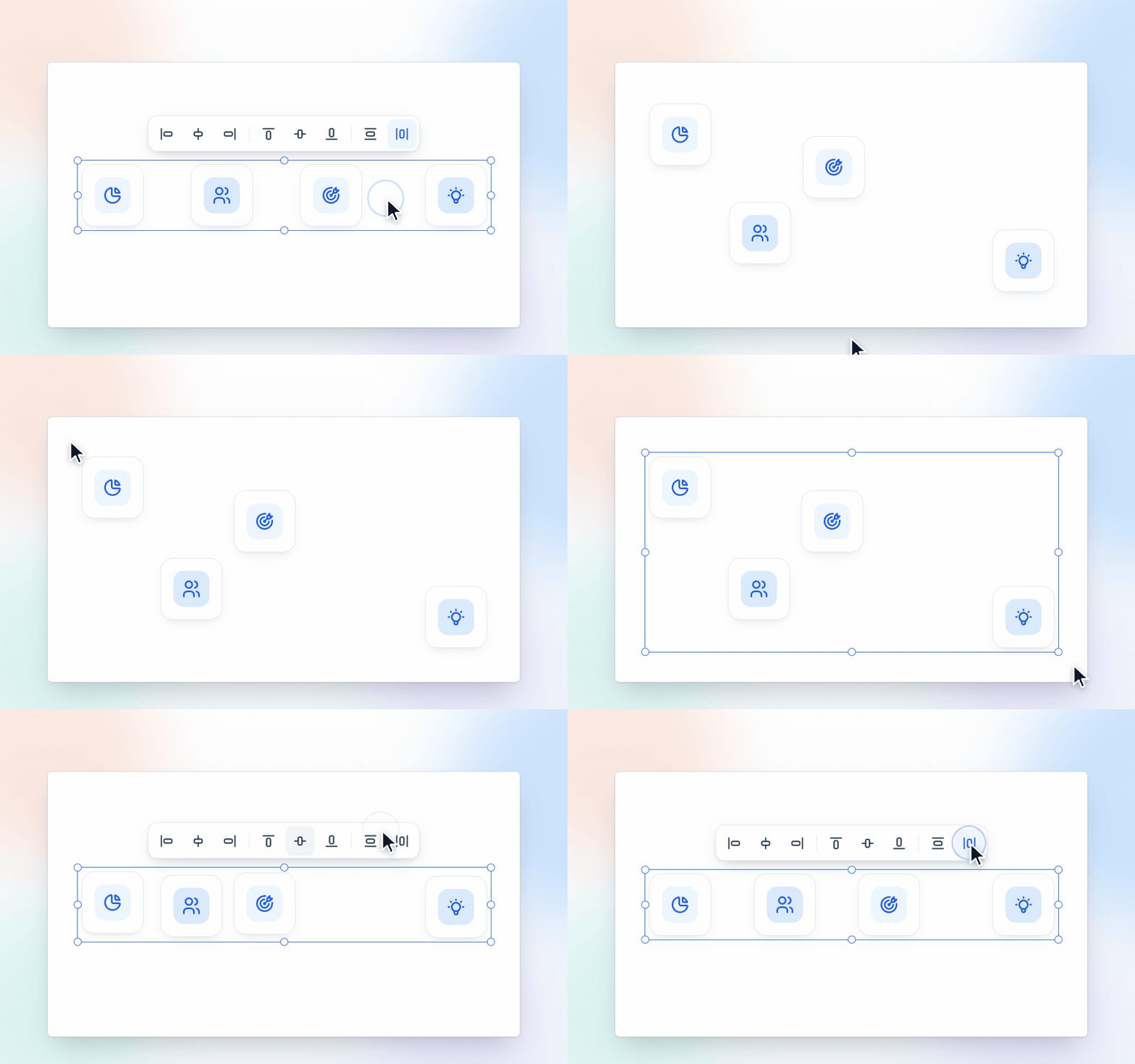
Select the tiles, click distribute, and the gaps even out. It is the same grid discipline you would apply by hand with guides, in two clicks. Arrange is part of Pro, and Save as component sits in the same toolbar.
Layouts, the slide-level version
Components cover pieces smaller than a slide. For a whole slide, ChartKit has Layouts. You save the slide you got right, with its title block, footer and chart placement, and apply it to add a new slide after the current one, built the same way. Layouts scale to the destination page size, and charts on a saved layout are copied as editable ChartKit charts.
If your problem is the monthly deck that gets rebuilt from last month's slides, read how to automate monthly reporting in Google Slides, which pairs layouts with charts linked to a sheet.
Using ChartKit Chat to place and rewrite
ChartKit Chat is a chat docked inside Google Slides. It runs on your own Claude, ChatGPT or Codex subscription through ChartKit Desktop, or on a team's admin-set endpoint. ChartKit does not resell model usage. Chat is part of Pro, and there is a free Pro trial.
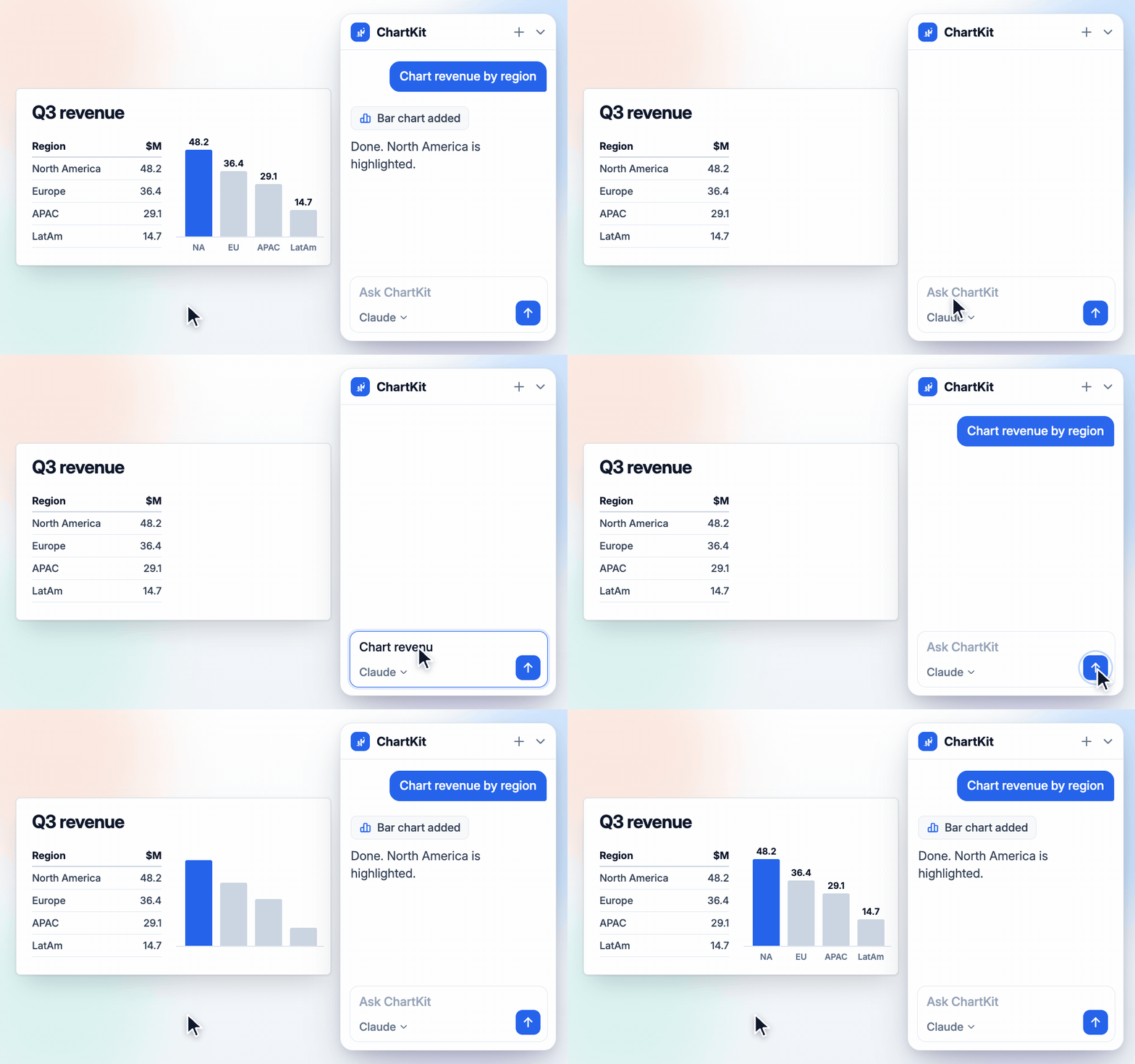
Two things matter for reuse. Chat can list your saved components and layouts, place a component on the current slide by name and add a saved layout as a new slide. When it places a component it can fit it inside a frame on the slide while keeping the aspect ratio, so "put the callout under the chart" does not need a drag. And it can rewrite the text on the slide, which means you can place a saved callout and ask for the sentence to say what this deck's finding is.
Select text and you also get the writing pill, with actions to improve a passage, shorten it or turn it into an action title, followed by shorter, longer, formal and casual re-runs.
Chat edits the open deck. Like any AI tool, it is only as good as the pieces it has to draw on, which is one more reason to keep a small, named library.
When this is not the right tool
If you only reuse one or two shapes, copy and paste is faster than any library. If the real problem is that every deck has a different theme, fix the theme first. Import a clean theme and set the colors under Slide, Edit theme. Components help when the same pieces recur across decks, and your team builds them often enough to name them.
If you want the charts that surround these pieces, the same extension builds waterfalls, Mekko charts and the rest. The roundup of Slides add-ons for consultants and finance teams compares the options, the think-cell alternative comparison covers how it stacks up, and the McKinsey-style chart guide covers the design rules those charts follow.
Common questions
Can you save a group of shapes in Google Slides to use again? Not natively. The native routes are copy and paste, Import slides and a scratch deck. ChartKit adds a Components library where you save a selection once and place it from a menu.
How do you copy shapes from one Google Slides presentation to another? Copy, switch decks and paste. Theme-linked colors take on the new deck's theme and size can shift. Copying a whole slide gives you a choice between matching the new deck's styles and keeping the originals.
Is there a shape library for Google Slides? Google ships built-in shapes but no library for your own pieces. ChartKit's Components library stores your own under Mine and Team, with a read-only Global tab of starters.
Do saved components stay editable? Yes. They return as real Slides shapes, lines and text. Images, tables, charts and word art cannot be saved in a component.
Can a team share one set of reusable shapes in Google Slides? Pick Team when you save a component and teammates with the extension see it in the library.
Can AI place saved shapes or rewrite the text inside them? ChartKit Chat can place a saved component or layout by name and rewrite slide text, on your own AI subscription.
If you rebuild the same callouts and process strips in every deck, try ChartKit for free. Components and Chat are part of Pro, and the Free plan covers 10 charts a month so you can see how it fits your decks first.
Rolling this out to a team that shares one set of pieces? Talk to us about team access.